



There are few operators in T-SQL that cause developers to scramble for documentation more than PIVOT and UNPIVOT. Beyond documentation, transforming columns into rows (and vice-versa) can often be confusing and frustrating for those of us tasked with reformatting data for use by an application.
This article walks through PIVOT and UNPIVOT, providing examples of simple use cases for both – as well as some more complex scenarios we can run into in real-world data. These can be extraordinarily useful ways to reformat data efficiently and quickly with less code than the alternatives. So, there is no need to fear them again!
Where are the T-SQL PIVOT and UNPIVOT operators used?
Both the PIVOT and UNPIVOT operators are unique in that they are long-standing inclusions in the T-SQL surface area, but are not found in ANSI-SQL or many of the other popular flavors of SQL.
PIVOT and UNPIVOT are included in:
- SQL Server
- Azure SQL Database
- Synapse Analytics
- SQL Database in Fabric
Why do developers struggle with PIVOT and UNPIVOT?
Despite being ubiquitous in T-SQL, developers are often confused or intimidated by the syntax. Being functions that are not often used, it’s easy to forget how to use them and struggle to piece together a solution using Microsoft Learn, articles, and trial-and-error. It’s equally easy to avoid these functions in favor of other solutions that involve more frequently-used syntax.
Usage and examples of PIVOT in T-SQL
The most common usage of PIVOT is during analytics or reporting when there is a need to convert row-based data into column-based data for output or further processing.
Consider a set of weekly sales data in WideWorldImporters for the following query:
|
1 2 3 4 5 6 7 8 |
SELECT [Invoice Date Key], [Customer Key], Quantity FROM Fact.Sale WHERE [Invoice Date Key] >= '3/8/2015' AND [Invoice Date Key] <= '3/14/2015' ORDER BY [Customer Key]; |
The results show sales quantities per customer per day:
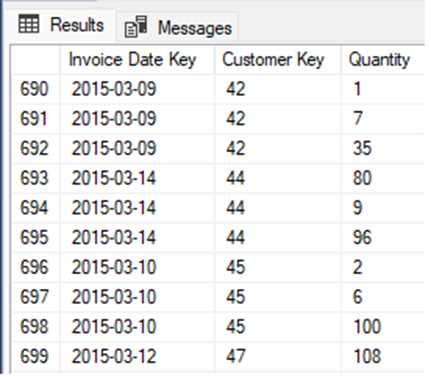
This is a simple data set with only three columns to manage. Consider a request for analytic data where there’s a need to have one row per customer with a column for each date, and total quantity sold on each. You’re provided with a sample format like this:

The blank boxes in the report are the total quantity sold on a given date for a customer. This is a natural use-case for PIVOT, as we want to convert row-based data into column-based data while summing up quantities along the way.
Fast, reliable and consistent SQL Server development…
The basic format of PIVOT is as follows:
|
1 2 3 4 5 6 7 8 9 |
SELECT [Output Column List] FROM ( [Select Query]) AS SourceData PIVOT ( AggregateFunction([Column to Aggregate]) FOR [Column to Pivot] IN ([Value List]) ) AS PivotData |
Following that formula, the following are the components needed to write our PIVOT query:
[Column List]: We will use * for this example, though you can customize as needed (as shown later.)
[Select Query]: This will be the same query we ran earlier, minus the ORDER BY clause. This will usually be similar to the already-identified/unmodified original query that retrieves the required data.
AggregateFunction: We want to add up the quantities per customer per date, so this will be SUM. If the source data doesn’t require aggregation, an aggregate function must still be provided here! In those scenarios, simply use whatever aggregate function is simplest, and add a comment to indicate that its choice does not matter.
[Column to Aggregate]: Since we are summing up Quantity, that’ll be the column here.
[Column to Pivot]: Since we are converting date values into columns, we will use [Invoice Date Key] here.
[Value List]: This is an explicit list of date values to pivot into columns. For this example, it is [3/8/2015], [3/9/2015], [3/10/2015], [3/11/2015], [3/12/2015], [3/13/2015], [3/14/2015].
When all of the above values are plugged into the PIVOT query structure, the result is:
|
1 2 3 4 5 6 7 8 9 10 11 12 13 |
SELECT * FROM ( SELECT [Invoice Date Key], [Customer Key], Quantity FROM Fact.Sale WHERE [Invoice Date Key] >= '3/8/2015' AND [Invoice Date Key] <= '3/14/2015') AS SourceData PIVOT ( SUM(Quantity) FOR [Invoice Date Key] IN ([3/8/2015], [3/9/2015], [3/10/2015], [3/11/2015], [3/12/2015], [3/13/2015], [3/14/2015])) AS PivotData; |
Note that the square brackets are a required part of this syntax. Using quotes or another delimiter will result in a highly ambiguous error message that looks like this:

Yeah, that is quite unhelpful, so be sure to use square brackets around each value in the list!
Other PIVOT content you may be interested in on Simple Talk…
Pivot Rotation and Matrix Transpose in SQL Server: A New Method?
Pivoting Data in SQL Server with JSON: A Generic Dynamic Matrix Approach
SQL Server PIVOT: 12 Questions Answered (Multi-Column, Dynamic, UNPIVOT)
Square brackets are expected because these identifiers are both the values to filter for, and the column names that will be used in the result set.
The results of the pivot query are as follows:
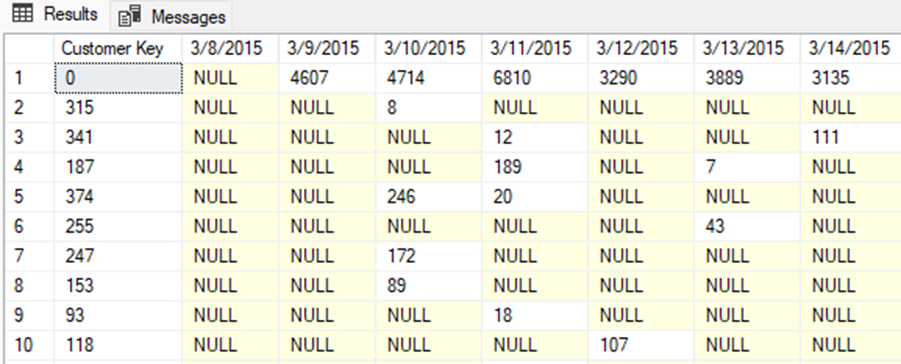
What about a date with no sales?
For a date with no sales, the behavior will mimic how the aggregate function would behave if no source values are found. A SUM across no rows returns NULL – therefore the example here shows NULL when there are no sales on a given date for a customer.
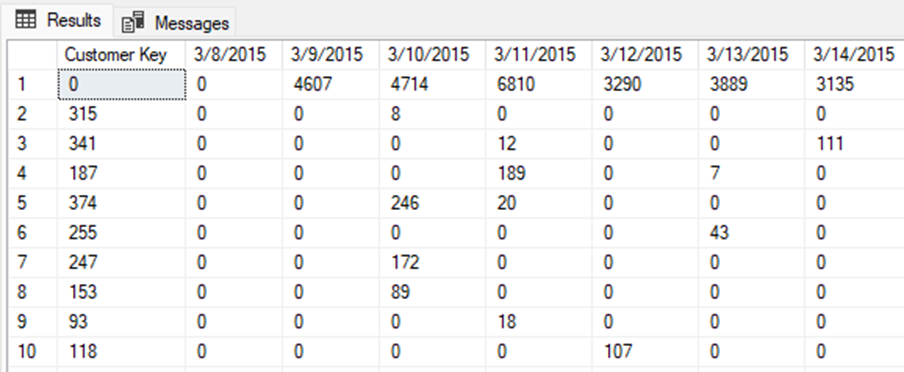
If zeroes are preferable, then the initial SELECT can be adjusted from * to a modified column list:
|
1 2 3 4 5 6 7 8 9 10 11 12 13 14 15 16 17 18 19 20 21 |
SELECT [Customer Key], ISNULL([3/8/2015], 0) AS [3/8/2015], ISNULL([3/9/2015], 0) AS [3/9/2015], ISNULL([3/10/2015], 0) AS [3/10/2015], ISNULL([3/11/2015], 0) AS [3/11/2015], ISNULL([3/12/2015], 0) AS [3/12/2015], ISNULL([3/13/2015], 0) AS [3/13/2015], ISNULL([3/14/2015], 0) AS [3/14/2015] FROM ( SELECT [Invoice Date Key], [Customer Key], Quantity FROM Fact.Sale WHERE [Invoice Date Key] >= '3/8/2015' AND [Invoice Date Key] <= '3/14/2015') AS SourceData PIVOT ( SUM(Quantity) FOR [Invoice Date Key] IN ([3/8/2015], [3/9/2015], [3/10/2015], [3/11/2015], [3/12/2015], [3/13/2015], [3/14/2015])) AS PivotData |
The results are cleaner and show zeroes instead of NULL:
More reading on NULL and SELECT you may be interested in…
Multiple columns can be pivoted at once, if needed. For example, if quantity needs to be summed up (as shown above), and [Bill To Customer Key] also included alongside it, then this can be accomplished using two consecutive pivots:
|
1 2 3 4 5 6 7 8 9 10 11 12 13 14 15 16 17 18 19 20 21 22 23 24 25 26 27 28 29 30 31 32 33 34 35 36 37 38 39 40 41 42 43 44 45 46 47 48 49 50 51 52 53 54 55 56 57 |
WITH QuantityData AS ( SELECT [Invoice Date Key], [Customer Key], Quantity FROM Fact.Sale WHERE [Invoice Date Key] >= '3/8/2015' AND [Invoice Date Key] <= '3/14/2015'), BillToCustomerData AS ( SELECT [Customer Key], Quantity, [Bill To Customer Key] FROM Fact.Sale WHERE [Invoice Date Key] >= '3/8/2015' AND [Invoice Date Key] <= '3/14/2015'), PivotDataQuantityByDate AS ( SELECT PivotDataQuantity.[Customer Key], ISNULL(PivotDataQuantity.[3/8/2015], 0) AS [3/8 Quantity], ISNULL(PivotDataQuantity.[3/9/2015], 0) AS [3/9 Quantity], ISNULL(PivotDataQuantity.[3/10/2015], 0) AS [3/10 Quantity], ISNULL(PivotDataQuantity.[3/11/2015], 0) AS [3/11 Quantity], ISNULL(PivotDataQuantity.[3/12/2015], 0) AS [3/12 Quantity], ISNULL(PivotDataQuantity.[3/13/2015], 0) AS [3/13 Quantity], ISNULL(PivotDataQuantity.[3/14/2015], 0) AS [3/14 Quantity] FROM QuantityData PIVOT ( SUM(Quantity) FOR [Invoice Date Key] IN ([3/8/2015], [3/9/2015], [3/10/2015], [3/11/2015], [3/12/2015], [3/13/2015], [3/14/2015])) AS PivotDataQuantity), PivotDataQuantityByBillToCustomer AS ( SELECT PivotDataQuantity.[Customer Key], ISNULL(PivotDataQuantity.[0], 0) AS [0], ISNULL(PivotDataQuantity.[1], 0) AS [1], ISNULL(PivotDataQuantity.[202], 0) AS [202] FROM BillToCustomerData PIVOT ( SUM(Quantity) FOR [Bill To Customer Key] IN ([0], [1], [202])) AS PivotDataQuantity) SELECT PivotDataQuantityByBillToCustomer.[Customer Key], PivotDataQuantityByDate.[3/8 Quantity], PivotDataQuantityByDate.[3/9 Quantity], PivotDataQuantityByDate.[3/10 Quantity], PivotDataQuantityByDate.[3/11 Quantity], PivotDataQuantityByDate.[3/12 Quantity], PivotDataQuantityByDate.[3/13 Quantity], PivotDataQuantityByDate.[3/14 Quantity], PivotDataQuantityByBillToCustomer.[0], PivotDataQuantityByBillToCustomer.[1], PivotDataQuantityByBillToCustomer.[202] FROM PivotDataQuantityByBillToCustomer INNER JOIN PivotDataQuantityByDate ON PivotDataQuantityByDate.[Customer Key] = PivotDataQuantityByBillToCustomer.[Customer Key] ORDER BY PivotDataQuantityByDate.[Customer Key]; |
This is an unusual scenario, but a single T-SQL query can contain as many pivots as you need. Realistically, I’d consider separating each into its own data, stage it in a temporary table, and then join it all together. This would simplify the overall query and improve performance.
Usage and examples of UNPIVOT in T-SQL
UNPIVOT operates similarly to PIVOT, except that columns are resolved into row-based data. So, essentially, it performs the reverse of what’s demonstrated above.
Consider the structure of the table Fact.Purchase:
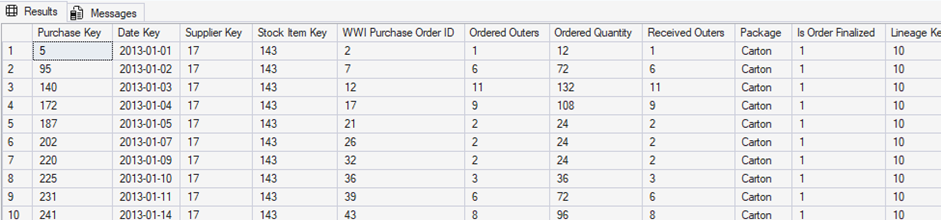
Consider a scenario where we want to adjust this data such that each row is broken into multiple rows per Purchase Key, with a separate row for Ordered Outers, Ordered Quantity, and Received Outers. This is a common scenario when there’s a desire to split data into distinct files, tables, or sets – and do so with as little code as possible. It also allows for deformalizing analytic data for use in reports, dashboards, or AI.
The following query accomplishes the above task:
|
1 2 3 4 5 6 7 8 9 10 11 12 13 |
SELECT * FROM ( SELECT [Purchase Key], [Date Key], [Ordered Outers], [Ordered Quantity], [Received Outers] FROM Fact.Purchase) PIVOT_DATA UNPIVOT ( Quantity FOR ResultType IN ([Ordered Outers], [Ordered Quantity], [Received Outers]) ) AS UNPIVOT_DATA; |
Note that the syntax is simpler than PIVOT in that aggregation is not necessary to generate a result set. Since UNPIVOT is a ‘one-to-many’ relationship between input and output, the query functions naturally as-is.
The results are as follows:
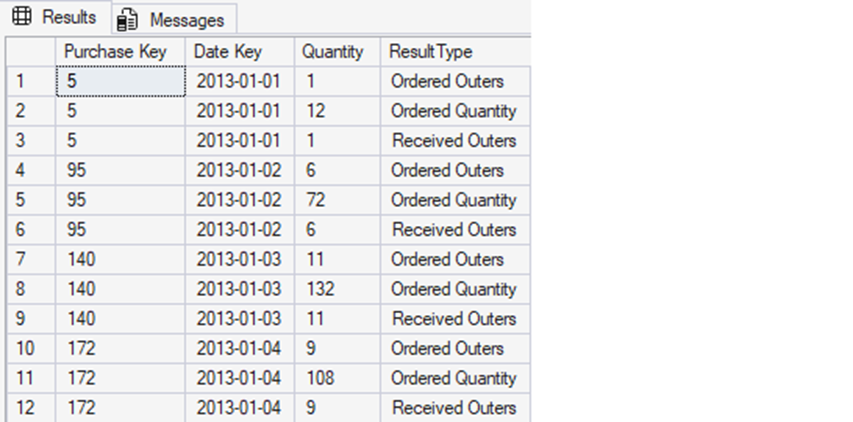
Note that each row from the input has been converted into three separate rows, one for each derived quantity. The quantity numbers themselves are not different from how they appeared in the underlying data. They are, however, now split into a row-per-value.
If there happened to be NULLs for any of the unpivoted values, then they could be omitted in the results with a single added WHERE clause:
|
1 2 3 4 5 6 7 8 9 10 11 12 13 14 |
SELECT * FROM ( SELECT [Purchase Key], [Date Key], [Ordered Outers], [Ordered Quantity], [Received Outers] FROM Fact.Purchase) PIVOT_DATA UNPIVOT ( Quantity FOR ResultType IN ([Ordered Outers], [Ordered Quantity], [Received Outers]) ) AS UNPIVOT_DATA WHERE UNPIVOT_DATA.Quantity IS NOT NULL |
In the above example, all three source quantity columns are NOT NULL. If any could be NULL, then this would ensure that the output does not contain any NULLs for Quantity.
In this regard, UNPIVOT can be a useful way to remove unknowns from a result set when NULL is deemed problematic.
The ‘unknown’ column list
When PIVOT operators are used, a new challenge is presented: an explicit column list must be provided. For scenarios where that value list is short, static, and unchanging, this is not an issue.
However – what if values are added or removed periodically?
Without updating the hard-coded list of values in the PIVOT query, the result set will be missing values. There’s no way to replace the column list with a * or other wildcard character.
This is a scenario where dynamic SQL can rescue us from a whole lot of head-scratching. The simplest solution using dynamic SQL would use the following steps:
- Create a list of columns to
PIVOTon, and store them in a table or string. - Generate dynamic SQL with the initial static query components.
- Insert the dynamically-generated column list into the query.
- Add in the remaining static query components.
Note that the T-SQL that is ultimately executed will look very similar to the PIVOT queries from above, despite the added complexity:
|
1 2 3 4 5 6 7 8 9 10 11 12 13 14 15 16 17 18 19 20 21 22 23 24 25 26 27 28 29 30 31 32 33 34 35 36 37 38 39 40 41 42 |
CREATE TABLE #Dates ([Invoice Date Key] DATE NOT NULL PRIMARY KEY CLUSTERED); INSERT INTO #Dates ([Invoice Date Key]) VALUES ('3/8/2015'), ('3/10/2015'), ('3/13/2015'), ('3/17/2015'), ('3/25/2015'); DECLARE @SqlCommand NVARCHAR(MAX); SELECT @SqlCommand = 'SELECT * FROM ( SELECT [Invoice Date Key], [Customer Key], Quantity FROM Fact.Sale WHERE Sale.[Invoice Date Key] IN ('; SELECT @SqlCommand = @SqlCommand + '''' + CAST([Invoice Date Key] AS VARCHAR(MAX)) + ''',' FROM #Dates; SELECT @SqlCommand = LEFT(@SqlCommand, LEN(@SqlCommand) - 1); SELECT @SqlCommand = @SqlCommand + ')) AS SourceData PIVOT ( SUM(Quantity) FOR [Invoice Date Key] IN ('; SELECT @SqlCommand = @SqlCommand + '[' + CAST([Invoice Date Key] AS VARCHAR(MAX)) + '],' FROM #Dates; SELECT @SqlCommand = LEFT(@SqlCommand, LEN(@SqlCommand) - 1); SELECT @SqlCommand = @SqlCommand + ')) AS PivotData;'; PRINT @SqlCommand EXEC sp_executesql @SqlCommand; DROP TABLE #Dates; |
At first glance, this T-SQL looks very complex. To put it in perspective, though, consider what the PRINT returns as the script to be executed:
|
1 2 3 4 5 6 7 8 9 10 11 12 |
SELECT * FROM ( SELECT [Invoice Date Key], [Customer Key], Quantity FROM Fact.Sale WHERE Sale.[Invoice Date Key] IN ('2015-03-08','2015-03-10','2015-03-13','2015-03-17','2015-03-25')) AS SourceData PIVOT ( SUM(Quantity) FOR [Invoice Date Key] IN ([2015-03-08],[2015-03-10],[2015-03-13],[2015-03-17],[2015-03-25])) AS PivotData; |
While its generation was complex, the resulting query was no different than PIVOT queries from earlier, aside from the data list having been customized.
The PIVOT column list can also be generated using a query rather than an explicit list:
|
1 2 3 4 5 |
INSERT INTO #Dates ([Invoice Date Key]) SELECT DISTINCT [Invoice Date Key] FROM Fact.Sale; |
The absurdly wide result set will look like this:

Generally speaking, a data set with 1,000+ columns is a very bad idea 😊
When generating dynamic PIVOT data, it’s important to ensure that the column list cannot grow unbounded. A WHERE clause on the INSERT into the temporary table would accomplish that easily enough:
|
1 2 3 4 5 6 7 |
INSERT INTO #Dates ([Invoice Date Key]) SELECT DISTINCT [Invoice Date Key] FROM Fact.Sale WHERE [Invoice Date Key] >= '5/1/2016' AND [Invoice Date Key] < '6/1/2016'; |
That adjustment ensures that the pivoted column list contains only data from May 2016. It will, therefore, only output data that produces no more than 31 possible columns.
As an aside, the unbounded query that generated 1000+ columns did crash my SQL Server Management Studio. I’m sure the query optimizer and SQL output generator were not very happy with my life choices! 😊
Dynamic UNPIVOT is generated in the same fashion as dynamic PIVOT, with the added work being to generate a column list that gets inserted into the UNPIVOT query. As an alternative to a temporary table, a string that’s built using the required values – whatever they happen to be – could be generated instead.
Whether you choose a table or string depends solely on your T-SQL coding comfort and/or whatever is an easier method to collect the desired values.
In conclusion…
Despite the initial headaches that PIVOT and UNPIVOT often cause developers and database professionals, there’s no reason to avoid these operators. They’re very efficient for columns that need to be resolved into rows, or row-based data flipped into columns.
Even if your coding experience has never required the use of transformations like this, simply consider them usable, accessible, and less complex than they may seem at first glance. They may one day be the source of a brilliant data solution for you!
Simple Talk is brought to you by Redgate Software
FAQs: PIVOT and UNPIVOT in T-SQL
1. What does PIVOT do in T-SQL?
PIVOT converts row-based data into columns, applying an aggregate function (like SUM or COUNT) as it goes. It’s commonly used in reporting to reformat a result set — for example, turning one row per date into one column per date.
2. What is the difference between PIVOT and UNPIVOT?
PIVOT turns rows into columns; UNPIVOT does the reverse, expanding column values into multiple rows. UNPIVOT doesn’t require an aggregate function since it’s a one-to-many operation — each input row produces multiple output rows.
3. Why do I need an aggregate function in PIVOT even if my data doesn't need aggregating?
PIVOT syntax requires an aggregate function regardless of whether aggregation is meaningful in your context. If no actual aggregation is needed, simply use whichever function is simplest (e.g. MAX or SUM) and add a comment noting that the choice doesn’t affect the result.
4. Why does T-SQL PIVOT require square brackets around column values?
The values in a PIVOT’s IN list serve double duty — they’re both the filter values and the resulting column names. T-SQL treats them as identifiers, which requires square bracket notation. Using quotes instead produces a cryptic error message that gives little indication of the actual problem.
5. How do I handle NULL values in PIVOT output?
By default, PIVOT returns NULL when no source rows match a given column value. To replace NULLs with zeroes (or another default), replace the SELECT * in the outer query with an explicit column list that wraps each pivoted column in ISNULL().
6. What is dynamic PIVOT in SQL Server, and when do you need it?
Standard PIVOT requires a hard-coded column list — if new values appear in your data, they won’t show up in results unless you update the query. Dynamic PIVOT uses dynamic SQL to build that column list at runtime from the actual data, making the query self-updating. It’s the right approach when the set of values changes periodically.
7. Can you PIVOT on multiple columns at once?
Yes, but T-SQL doesn’t support multi-column PIVOT in a single operator. The recommended approach is to run separate PIVOT operations (using CTEs or temporary tables) and then JOIN the results together on a shared key column.
8. Which SQL platforms support PIVOT and UNPIVOT?
PIVOT and UNPIVOT are T-SQL features, not part of the ANSI SQL standard. They’re available in SQL Server, Azure SQL Database, Azure Synapse Analytics, and SQL Database in Microsoft Fabric — but not in MySQL, PostgreSQL, or most other SQL dialects.
This document contains proprietary information and is protected by copyright law.
Copyright © 2026 Red Gate Software Limited. All rights reserved






Load comments